Make a link-in-bio page with an AI assistant
An assistant can draft a whole page from a sentence, but it works from what you tell it and it can guess wrong. Here is how to ask for a page, claim it into shapes, and check it before it goes live.
A shapes guide, not an independent product review. Examples are illustrative; screenshots show the real application.
What an assistant can and cannot do.
A connected assistant can build the same page you would build by hand: a name, a short bio, social icons, link buttons, folders, a gallery, a music or video player, products, events and an email signup. It can choose one of the six looks or set colours and fonts. It can keep changing the same draft while you talk.
It cannot publish, choose a plan, connect your accounts, upload your files or take payments. It also does not know your links unless you tell it. Every draft starts private, and only you can make it live.
- Ask for changes while the draft is open. The assistant updates the same preview.
- Give it real destinations, not just names: “my shop is at shop.example.com”.
- If you have no link for something yet, ask it to leave the button out rather than invent one.
Ask in a way that gets a good page.
The useful request has three parts: who you are, the one thing you want a visitor to do, and where your other links point. An assistant that knows your work will arrange it better than one that only knows your name.
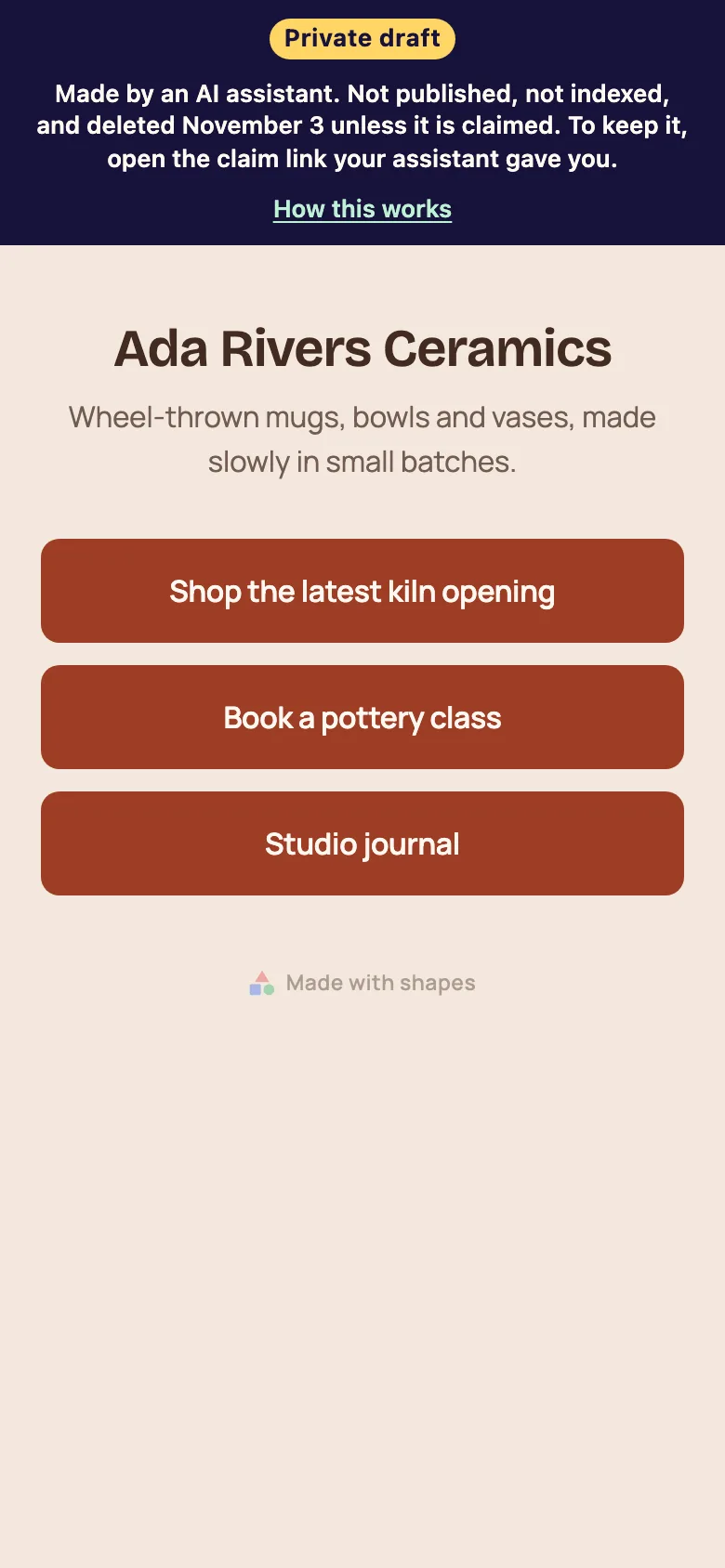
Try: “Make me a shapes link-in-bio page for my ceramics studio. Put the new batch first, then a folder with commissions and my newsletter. Use the Clay look.” If you already have a page you like, say which parts to keep.
- “Make me a link in bio for my Instagram.”
- “Make my shapes page calmer: tour dates in a folder, the new single at the top.”
- “Turn my old Linktree into a shapes page in the Midnight look.”
Connect the assistant once.
shapes works with any assistant that supports MCP connectors. You add the shapes connector address once, and from then on you can ask it for a page in a normal conversation. There is no key to copy and no shapes account needed to see the draft.
The developer page lists the steps for Claude, ChatGPT, Muse, Cursor and VS Code. If your assistant cannot add connectors, you can still build the page yourself on your phone with our guided signup.
Claim the page, then read every line.
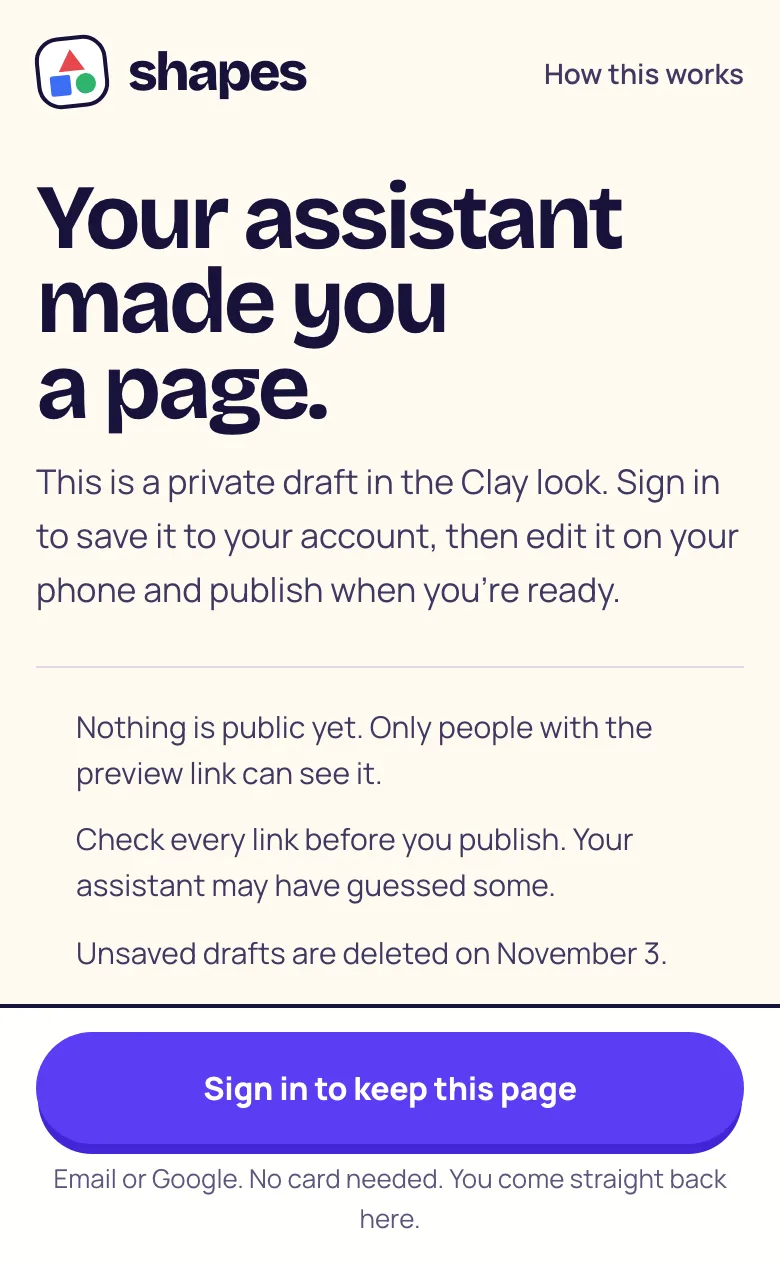
The assistant gives you two links: a preview and a claim link. The preview shows the real page with a “Private draft” label; it is not published and search engines are told to ignore it. Open the claim link, check the name and address, and sign in with email or Google. The page becomes your own private draft.
Then read it as a visitor would. Open every button and confirm it goes where you expect. Replace photos you do not have the right to use. Fix any wording that sounds like marketing rather than you. The editor shows a reminder the first time you open a claimed page for exactly this reason.
Images, dates and the rest.
If the assistant used pictures from another website, the preview loads them through shapes, and they are copied into your own image library when you claim the page. An image that cannot be copied is left empty for you to replace.
Anything with a date, such as tour dates or a launch countdown, is worth checking twice: assistants work from what they were told, and an old date is worse than no date. Use scheduling so out-of-date blocks hide themselves.
Publish it yourself.
Building and editing are free. When the page is ready, choose a plan and press Publish in the editor. Everything before that point is private, and an unclaimed draft is deleted after seven days.
After it is live, keep using the assistant if you like, or use Cove inside the editor, which edits the same page and can be undone one tap at a time. Check the page on a phone once it is live, then put the address in your profile.