Show the work, then point to the shop.
Visitors to a maker’s page want to see the work first and buy second. A gallery earns the trust, a clear “available now” section turns interest into a visit to your shop, and everything sold out goes quietly to the archive.
Written by shapes. Examples are invented to show a page order; they are not customers.
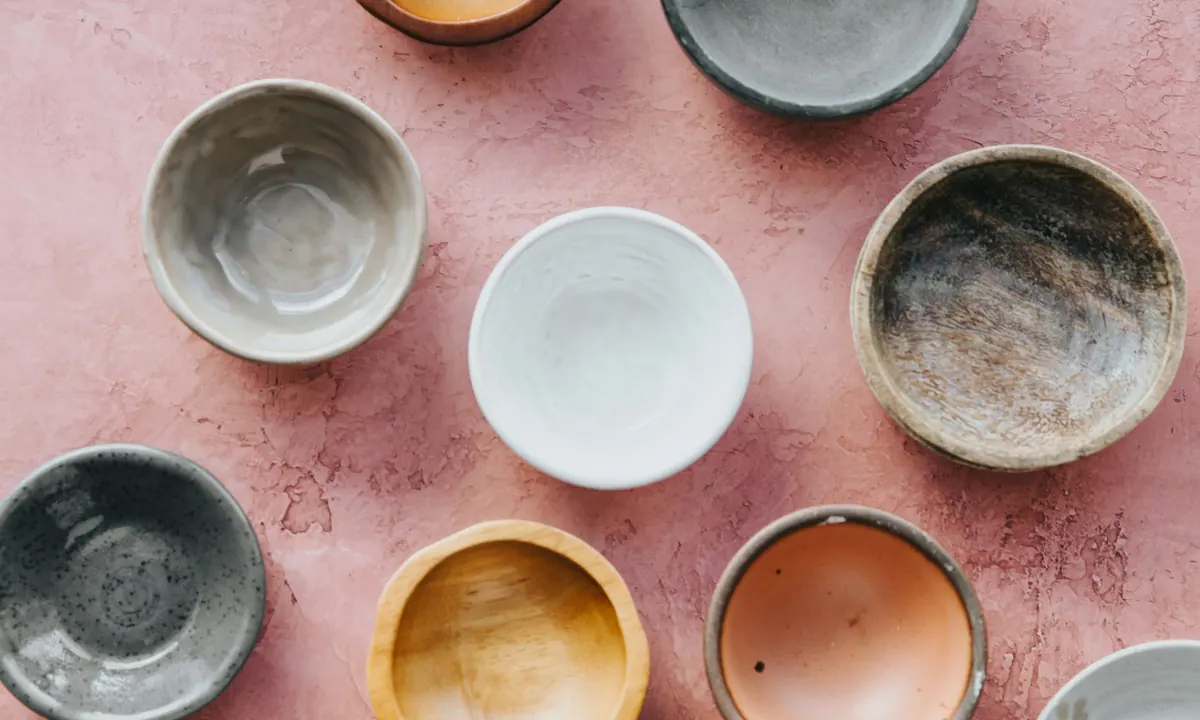
Blocks used on this page
- Gallery
- Show several pieces at once, as a grid in two or three columns or as a swipeable carousel.
- Product
- Feature one item with a name, a price you type, a short description, a badge and a buy link.
- Link
- Send people to your shop, in a classic, thumbnail or featured style.
- Countdown
- Count down to a drop or a restock.
- Folder and Tabs
- Group past collections, or split the page into a few clear sections.
- Contact card
- Give a name, role, email and website for commission enquiries.
Start with the work itself.
People decide whether to trust a shop by looking at what you make. Put a Gallery near the top, before any sales language, with your best recent pieces.
Images are re-encoded when you upload them and metadata is stripped from them. Add a short description to each image, because it helps people using screen readers and describes the piece when the image does not load.
Make “available now” obvious.
A Product block is for one thing you want to push this week. It has a name, a price, a short description, a button label and an optional badge such as “New” or “Last few”. The price is text you write, so include the currency yourself.
The button opens a link of your choosing, normally the product page on your own shop. shapes does not hold stock, take payment or run checkout, so keep prices and availability up to date at the source.
Link to the shop, and test the link.
A featured Link to your shop’s main page works well alongside the product. Some providers can be added as an Embed. Gumroad is supported, and a Stripe payment link opens as a button that goes to Stripe’s own checkout rather than running inside your page.
Whatever you use, buy something small yourself from a phone before you share the page.
Plan around drops and restocks.
If you release in batches, a Countdown to the next one gives people a reason to return. Give it a link, and write the text it shows when the date arrives.
You can also schedule blocks. Show the new collection from the morning of the drop, and hide it on the day you sell out. Hidden blocks are not delivered to visitors at all.
An illustrative page, top to bottom.
This is an invented example to show the order, not a real shop. “Juniper Clay” makes small-batch mugs and has a new collection going on sale on a set date.
A Gallery of four recent pieces sits at the top. Under it, a Product block for the one mug that is in stock now, with a “Last few” badge and a button to the shop. Then a Countdown to the next drop, linking to the shop. A Folder named “Past collections” holds the rest, and a Contact card gives an email for commissions.
Before you share it.
Do these on a phone, as a customer would.
- Follow the buy link and make sure it lands on the right item, not the shop home.
- Check the price and the currency match your shop.
- Look at the gallery with the images off a slow connection. Do the descriptions still make sense?
- Hide or schedule away anything that has sold out.
An archive, and a way to ask.
Past collections belong in a Folder, not in the main path. Folders can open in place, as a panel, as a grid of tiles or as a swipeable row. If you have several groups, Tabs can turn three to five of them into one calm view.
For custom orders, a Contact card holds a name, role, email and website. Say in a line what you take on, how long it usually takes and what you need to know first.
Common questions.
Can people buy from my shapes page?
They can click through to buy. Checkout happens on your shop or payment provider, which handles orders, payment and fulfilment. shapes does not process payments.
Does the price update automatically?
No. The price on a Product block is text you type, so update it when it changes in your shop.
Can I use my own domain?
Yes, on Pro. Both paid plans include a shapes address.